Search This Blog

Showing posts with label digital PD. Show all posts

Monday, 16 April 2018

Formative assessment tools

So I've been playing with ways to assess students understanding and ensure they are secure in their knowledge.

I've been playing with a few tools and I'll go in order of my favourites.

Plickers - www.plickers.com

Plickers is a great tool to use if you don't have a great student internet or device availability. 
Students have a piece of card and hold up the card in different ways to show their answer. They each have an individual card so you can see what each student has answered. To collect answers you scan the room with the camera of a device (either ios or android). It will collect the answers, from the students.
Pros Cons
Easy to use and easy for students to understand. You can only ask multiple choice questions.
You can download class information into CSV, excel files to review. You may need to unblock/remove from a blacklist their cloud image sharing site.
Easy to see display on the app means you can identify who is getting the right or wrong answers. You have to download the app onto your mobile device or tablet, trying to do it from a laptop is really hard.
Students can easily see if they have voted using the live view on a screen or with a projector. Difficult to use if windows or light sources are behind students.
Students can easily see how they are doing and how others are doing in class, but still remain anonymous with how people have voted.
Student's don't need a device.

Kahoot

Kahoot is a great way to assess knowledge or get feedback from students and doesn't require an app on students devices to access. It can be used on every type of device mobile and laptops. You can ask multiple choice questions and students love it and its timed and gives points for speed and accuracy.


Pros Cons
Easy to use and easy for students to understand. You can only ask multiple choice questions.
You can download information regarding how your students have answered. Every student or group needs a device.
It has a group mode so if you don't have 1:1 devices you can allow discussion time. The music is really annoying, which doesn't sound bad until you have listened to it 10 times in a day.
There are loads of quizzes by other teachers that you can use and adapt to your classes. If your internet connection is patchy in any way the screen will freeze and students will get very upset.
Students love it.
Kahoot questions with answers

Mentimeter

Great app to review feedback and to check understanding. Again it asks multiple choice questions but the main point of this is as a decision-making tool. It shows a bar graph on the screen and is great for getting students to collaborate and make decisions. You can also use it to ask a question and students can respond.


Pros Cons
Looks simple and very easy to view answers You can only ask multiple choice questions.
Students go to a website menti.com and input a code to access the site. Unless you allow multiple votes it will not allow more than one vote per device. Which is difficult if you don't have 1:1 devices.
Unless you allow multiple votes it will not allow more than one vote per device. Which is great for making sure you only get one vote per person.

Socrative

Still playing with this one so can't yet do a pro's and cons list but I'm definitely finding it interesting. It's a way to get answers from students. It's the only programme that allows long answer questions. Students can also vote on their favourite answer to questions and this allows students to learn from each other.  
Socrative home page

Monday, 29 January 2018

BETT

BETT

So I went to the BETT conference on Saturday. Wow, that is one big event and it was so busy.

Seminars

So I was a bit slack and only went to half of one seminar but there was so much to see! I saw a brilliant discussion from Lauren Thorpe (Head of data and Systems strategy, ARK), Catherine Scutt (Director of Education and research, Chartered College of teaching) and Nic Newman (Partner, Emerge education) all compered by Abdul Chohan (Director of Learning and development, The Olive Tree Free School). So all very experienced individuals, discussing teacher workload. The first Question which really interested me was "How can technology reduce workload?" The answers and discussion were quite enlightening.

- Technology in schools should be easy to use and reliable. This is something I'm definitely struggling with at the moment with Microsoft technology it isn't easy to use and it isn't reliable across different platforms. Google sometimes have these issues as well but they seem to be less frequent nowadays.

- Schools need to evaluate the technology they are using to see if it has benefits or whether it is just extra work.
I have been part of an evaluation process in a previous school and I have to say that when we found that the idea had not worked out as successfully as hoped it did not go down well.
I will now be putting in place an evaluation tool to work out if the effort I'm putting in is effective and not losing sleep if it isn't. I think I'll start off with the student's voice as this is often the easiest way to collect feedback. I will try more quantitative analysis with a couple of apps I'll be using later on in the year as well.

- Coursera is a great place to get CPD, yeah it really is.

Technology and apps

Science Journal - Google were showcasing this one and gave me more ideas on how to use it. The Chromebooks have more functionality in some ways than Ipads to use this as they contain a magnetometer but actually, they are still pretty good. Can't wait to use this in more ways.
- Available on Google Play and IOS free
Science journal website on google

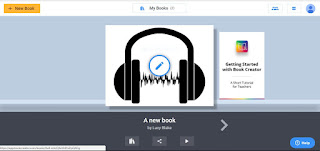
Book Creator - This is an app where you can make your own book add video, sound, pictures and text. It can be downloaded as an epub or a pdf. The free version allows students to make one book at a time. It doesn't have spellchecker or grammar checker but it does make pretty books that can possibly help organise students work in a clearer fashion. To be fair if you are working on the computer and have Grammarly on your chrome app you can use that to check out the spelling and grammar.


Squid Notes - So I've had a quick play with this and the free app is a way to draw notes but not type them. You can type them and draw on PDF's, however, this is only available in the paid part of the app. Could be useful especially if you get a lot of PDF's and want to write on them digitally and then share them it's only £4.79 for the PDF import tool. 
Squid notes webpage - https://www.squidnotes.com

Microsoft specific apps and tools

Paint 3D - Available on any computer installed with Windows 10.
I met some of the developers of this app and they were super excited and really knowledgeable and weirdly enough for people developing tools had actually spoken to teachers (one of the members of their team is a graphics teacher) and they had got some of his students in to test it. I've had a play with it and I can see that for graphics student's it might be great but I can see it being a massive waste of time for student's in science for example. 


Wednesday, 3 January 2018

Using Padlet in the classroom

Using Padlet

Padlet is a really useful collaborative programme and I've got to say I really love it for use in class. It's a great way for students to learn from each other.

The limitations are: 

- You have got to monitor students posts as they tend to get excited about the fact that they have free reign to post whatever they want. This calms down after the first few uses as they like the positive feedback.
- Trying to get students to all log onto a new programme at the same time is little like herding cats.

The Positives are:

- Students can post video's, photo's (I especially like photo's of their work), links to useful websites and any document they have on their device.
- Feedback is really easy for teacher and students to give to each other (I especially love the fact you can choose to like posts).
- It's a way to promote rewindable learning from the students.
- You can make it look really pretty really easily. Which is important to students and means they tend to engage a bit better.

How to use this in the classroom

First of all make your link easy to write down, especially if your a school using Microsoft 365, and sending out a group email is quite challenging. This will make your life so much easier and especially for students who are struggling with spelling and literacy.
Students really enjoy working as collaborators, and sharing their knowledge. Students need a place to practice commenting on others work and Padlet is a great place it allows you as a teacher to delete innapropriate comments (really easily if you download the app onto a tablet), it allows teachers to comment on posts and give a thumbs up to great comments or posts. 
I quite like padlet as an easy way for students to share their knowledge. It's easy to use and students can use it on a range of devices (it even works on ipads). For a revision tool it works quite well. I've only tried it as a way to reflect on their learning so far. I would like to use it for individual students to post every lesson and then use it as an aid to revision. If you try it let me know how it goes. It will be easier to monitor in a Google apps for education school as students and teacher can log in using their google account.

http://www.lunarbaboon.com/comics/feedback.html

Tuesday, 24 October 2017

Microsoft 365

So I've moved to a new school and I'm now using Microsoft 365 and mainly Ipads. First of all I need to say that I've never really been a fan of Ipads in the classroom. I also need to state in the interests of transparency that I'm new to Microsoft 365 so I'm still working out how to use it properly.

I've been using Google for the past few years (I got my google level 1 educator a month or so back) and I have to say I enjoy how easy it is to use for students and I now know its way easier for admin to use as well. I've been using Microsoft 365 for just over a month and it has some great benefits which Google doesn't have.

Benefits:

1. One note is a great way to see a whole class full of work and you can set work for for loads of groups of students.
2. One drive works as well as google drive so no complaints there.
3. Using powerpoint/ word/excel online is great and as you can download the files and edit them on your computer it makes using powerpoint a whole lot easier than slides.

Ok now for the problems I've been facing, which are not all due to Microsoft 365:

1. Powerpoint in Onedrive is not able to be edited on Ipads with ease. This is also a problem faced by Google slides but not to such a severe extent.
2. Passwords are incredibly difficult to change in the admin. This is also due to the fact that Microsoft 365 doesn't sync easily with SIMS.
3. Sharepoint, I can see that they are trying to emulate shared servers on Microsoft computers but it uses the worst part of Microsoft and it's really difficult to find anything.
4. The editability of Powerpoint, Word and Excel is reduced to a very basic and frankly unusable version if you are doing it online. A lot of the better features of these programmes are completely lost on the online version.

I'm also working in a school that is part of a group of schools so there are restrictions on all sorts of things and how they work within the group. I don't have all the permissions I used to have (I'm now an Admin not a Super admin) so that can be an issue. So some of the issues I'm having with using this new system is in part due to the restrictions in my user name.

I really want to emulate the work I was doing in New Zealand and make the learners in my classroom self motivated in their learning. I know that the student's I am teaching are more than capable. The school I am working in has high expectations for their learning and behaviour so there is a framework in place. All I need to do is find a way to get the technology to work for me. I'm really trying to keep an open mind but I have to say I'm struggling with Microsoft 365, so I think this will possibly be my greatest technology challenge so far.


Monday, 15 May 2017

Blogging

Blogging in the classroom

I know it's weird I'm writing a blog about blogging. But this is a more specific blog post regarding the usefulness of blogger as a tool to use with my classes. I have 2 classes I am currently working on Blogger with two classes in different ways my for junior blog I'm doing the blogging and sharing their work and what is going on in class with them and their whanau. For my seniors they are doing the blogging themselves.


Junior school blog

The junior school blog started off as a way for the junior pupils to have a space for rewindable learning. I realised every time I do an experiment in class the students ask questions as I go so actually putting those on a video is quite useful sometimes. Last week I tried a different method I filmed the video before class and gave the students a link to the blog and a worksheet. They really loved it and it gave me more time to answer individual questions and support students with their individual needs. I think this actually may be the way forward, losing the teacher talking at the front and spending more time individually with students. It's kind of blown my mind a little, it was quite hard to not explain too much and just let the students get on with it.

Senior class blogs

I decided to let my senior students create their own blogs and try to empower them to build a positive digital footprint. I wasn't sure how well it would go down with the students as they are year 11 and they have been known to just stare at me like I'm a crazy lady. A few students have got into the blogs and have produced some excellent work. For them they are using their blogs as a way to supplement the work book they are using and to consolidate learning in class. Well that's how I envisaged they would use it. Turns out they are way more imaginative than I am and some of them have started to use it far more creatively than I would have thought and are producing some excellent posts. I'm very proud of this group of students.

http://charlottewhsscience.blogspot.co.nz/


http://brookewestland.blogspot.co.nz


http://charliscience.blogspot.co.nz

http://andrewbradley1.blogspot.co.nz/

http://amywestlandhighschool.blogspot.co.nz/?m=1

http://hollywestlandhigh.blogspot.co.nz/

http://tarmwestland.blogspot.co.nz/

http://beyoncescience.blogspot.co.nz/


Monday, 1 May 2017

Google for education, educator level 1

Google for education, educator level 1 training

So today I started the google education training today. I decided to start with the level 1 training course so I could find out what the course is about and have a go at completing it. The course is interesting so far I have done 4 of the 13 units of the fundamentals course.

I have learnt quite a few things although I think this course is aimed at teachers using google apps for education for the first time I have learnt quite a bit about features that I have never used. The course is in units, each unit is split into lessons. Thankfully they have given time allowances for each unit so you can plan how long you want to spend on the course. Each lesson is concise and gives links to websites and places to find information. At the end of each lesson there are multiple choice questions which you can mark as you do them. At the end of the unit their is a test to find out how much you have learnt. I have to say that some of the questions are quite strangely worded and I don't always agree with the answers especially when relating to teaching pedagogy (units 1 and 2). Some of the questions are also weirdly phrased which mean I have given the wrong answer to a question and I don't fully understand why.
Example of one of the questions

"If you wanted to create a space to share weekly information with all of the one hundred seventy different community mentors of your students, what would be the URL (not including https://) to use to get you to the google product best suited for this?"

I thought an answer to this question would be sites.google.com, as this is a forum I use to communicate with parents however the answer was groups.google.com. I know this is a useful tool however it's not something I use with my classes to communicate with parents or students. This is definitely a weakness on my part as from what I have seen it could be really useful to send out bulk emails and connect parents not just students. I think I have only scratched the surface with this as I mainly use google groups as a forum to ask questions and discuss ideas. Google groups in on the staff learning site but I have purposely removed the email notifications from the web forum as otherwise staff were bombarded with email every time anyone posted. Google groups is a great collaborative tool and hopefully I can use it to its full potential.

I'm doing ok with this so far but I am worried about the test ($10 to take if you were wondering), there are practice questions but although I understand the tools and I can do everything in the tasks I am so far quite rubbish at understanding the multiple choice questions.

Actually this fear of the test is really good for me, I'm dyslexic and always did quite poorly in written exams as a student (I have never completed a written test within the time allocation), especially as I didn't get diagnosed until I was 21. I am being reminded how many of my students feel on a daily basis and how they feel having to sit an assessment. Having a learning disability has never really held me back in fact I usually see it as a strength rather than a weakness but written test are definitely my kryptonite.

Thursday, 23 March 2017

Inquiry Cycle


So this is my inquiry cycle so far above is the brief notes version.

Plan for my inquiry, planning is hard but once you have done this bit it gets easier. Yeah right I started this 3 months ago and it's only up to posting standard now.


What are our student’s learning needs?


What do they already know?
How to access the school website and log onto the student portal
Junior class - I need to engage students in their learning by giving them opportunities to rewind and opportunities that are not written to engage them in science. I think the learn, create, share pedagogy will work. They are already using this to some extent in other classes as the whole school is involved in the Toki Pounamu scheme


What sources of evidence have we used?
Assessment data, google forms, thumbs up (class checks of knowledge), Target sheets (middle school maths and science)


Gather & interpret data
- Data collated from Senior class assessments physics 1:1 and feedback from students in a google form. - This way I have quantitative data to compare between methods within a class as well as longitudinal data from previous classes.
- Target sheets collated with assessment data from middle school science class. This way I can quantify what they understood and achieved in each lessons to link this to any changes I have made.
- Junior class need constant attention and there are students with very low reading and writing ages. I need to engage students in their learning by giving them opportunities to rewind and opportunities that are not written to engage them in science. I have data from previous schools and current standardised testing.

What do they need to learn and do?

Students need to learn how to access the class website and use the rewindable learning.
Students need to make their own rewindable learning so they can support themselves.


Juniors
Learn to use the chromebooks features to make it easier for lower ability students to engage in science


How do we build on what they know?
Students are already web savvy and they seem to enjoy knowing what they are doing next so now the plan is going to get the students to rewind if they miss a lesson to find out what they have missed or to go over a subject they didn’t understand.


Juniors
- Build up the learn create share pedagogy in class, work with other teachers so it becomes second nature for juniors
- Use the rewindable moments in class so it becomes second nature


What are our own learning needs?


What do we already know that we can use to promote valued outcomes?

SOLO, PB4L, Woolf Fisher research data on toki pounamu projects


What do we need to learn to do to promote valued outcomes?

Learn, Create Share pedagogy
Learn how to use google sites effectively - make them user friendly/pretty


What sources of evidence/knowledge can we utilise?

Rewindable learning is ubiquitous learning presentation 20th Feb
Toolkit rewindable learning presentation 15th March


Learning from as many sources as possible, Lead teacher days and blogs from other teachers.
Blogs from other teachers in the manaiakalani clusters:
Philippa Mallinson Arts teacher Secondary School, West Coast


Design of tasks and experiences


- The maths and science websites are now up and running and linked to the school website so they are now accessible.
- Screencastify lesson parts and put them on the website, already trialling this with the staff website and digital tools.
- Students are going to Learn something, create a learning object and then share it digitally.
- Got to remember not to overload students with new things as they like everyone need time to process new ways of learning.


Teaching actions


Seniors
Start small and work up with them, they already know how to access the site and go over previous presentations of work.
Learn about plants, create a learning object to explain how different parts of the plant work and share on a padlet page that will be linked to the site.


Middle school students
Science fair topic is already planned out online and students need a place to ask questions if they want me to go over something. But so far I will put short videos up from every new topic.
Maths students are going to have rewindable learning for every new topic and quite a few are really keen on this and have spoken to me today. I will also have to come up with extension tasks for this very mixed ability group.


Juniors
Start them investigating earthquakes and give them something to learn they have created quite a lot so far in the class I would like them to start sharing their learning on their blog with an information video, slide or to use their jigsaws to explain why/how earthquakes affect us in New Zealand.

Link to the original document

Friday, 17 March 2017

So following on from a PD session with the lovely Madeline. I've been thinking about how to make the learning sites not only more accessible to students but also the staff. The staff at the school are doing an awesome job and I'm not sure that everyone knows what's going on in other classes, I know I don't.

So yesterday I started my plan to share the amazing work the staff have been beavering away at recently.
1. Put any learning sites that have been made on the school website.
2. Share these in the staff meeting this morning, and ask staff to ask questions about a site that they have viewed.

This actually worked really well with staff and I found out about sites and staff doing this that I had no idea about.
It also had a bit of an effect on other staff that I wasn't expecting. Once staff saw what other departments had achieved several staff asked me how to do the sites and if there was a template. Staff wanted to keep up with others a side effect I wasn't expecting but was totally stoked about. Totally impressed with how well everyone is doing and those that aren't quite there yet are seeing and learning from others.

Problems to solve
a) Students need to know where they can get access to resources.
b) Students also need to have a reason to access these resources.
c) Students need to have access to devices so that they can access the sites.
d) The area we are in needs to have reliable rural internet so students can access this outside of school.
e) Is the site accessible on multiple platforms

Plans/ideas about some of these issues
The students all know where the school website is and frequently access it to find their timetables or information about the school. Today I showed my whanau class the learning sites page and they were all quite interested and excited to see what others were doing. The Junior sites and blogs have lots of diverse and interesting things in them so all the students were really interested in that (MC, CA). Missing classes and wanting not to fall behind is a good reason to use the sites but we also need to instil and love of learning, to build enthusiasm and enjoyment. With the learn create share method I think getting students to share their creations online will help to build up the enthusiasm and enjoyment. The accessibility of the sites on multiple platforms is a bit of an interesting one. We are generally using Chromebooks at school, but students will use lots of devices outside and I feel we need to encourage this. Found a handy wee site that lets you check to see what your google site will look like on a mobile. https://search.google.com/search-console/mobile-friendly

Things I have no control over
Hopefully, the juniors will be 1:1 devices quite soon and that will mean that they will have the capacity to access the sites daily. More Chromebooks would be awesome to use with middle school and senior students but hopefully, this will happen in time. I have no control over internet providers, unfortunately.


Thursday, 23 February 2017

Toki Pounamu PLG

Professional learning day at Grey Main School

Today focused on Learn, Create and Share (link to slide show here)

Learn
Digital devices to augment learning in the class. Learning information should be clear and easy to access. Teacher led information should be on learning site not in hapara. 
DON'T WORRY about the look of the site, getting something there is more important than the not having anything on there.

Create
Ideas
Students are hopefully given ways to express themselves in a way that has not been given before. Creating an essay is not a new way to share.

If students are creating digital object then that moves you up as a classroom teacher up to the SAMR model. To Augmentation
S - Substitution
A - Augmentation
M - Modification
R - Redefinition


Lots of shared ideas on the padlet this made me realise that I have so much to learn before I can do this. 

Share
Blogging, lots for Philippa to do.
Good for students to connect with a wider audience as this improves their confidence and feedback.